# Windows Demos
## Table of Contents
- [Windows Demos](#windows-demos)
- [Table of Contents](#table-of-contents)
- [About These Demos](#about-these-demos)
- [Known Issues](#known-issues)
- [Jobs](#jobs)
- [Workflows](#workflows)
- [Suggested Usage](#suggested-usage)
- [Connecting to Windows Hosts](#connecting-to-windows-hosts)
- [Testing with RDP](#testing-with-rdp)
## About These Demos
This category of demos shows examples of Windows Server operations and management with Ansible Automation Platform. The list of demos can be found below. See the [Suggested Usage](#suggested-usage) section of this document for recommendations on how to best use these demos.
### Known Issues
We are currently investigating an intermittent connectivity issue related to the credentials for Windows hosts. If encountered, re-provision your demo environment. You can track the issue and related work [here](https://github.com/ansible/product-demos/issues/176).
### Jobs
- [**WINDOWS / Install IIS**](install_iis.yml) - Install IIS feature with a configurable index.html
- [**WINDOWS / Patching**](patching.yml) - Apply Windows updates by category and create report
- [**WINDOWS / Chocolatey install multiple**](windows_choco_multiple.yml) - Install multiple packages using Chocolatey and check versions
- [**WINDOWS / Chocolatey install specific**](windows_choco_specific.yml) - Install a single given package using Chocolatey
- [**WINDOWS / Arbitrary Powershell**](arbitrary_powershell.yml) - Run given Powershell script (default: retrieve cat fact from API)
- [**WINDOWS / Powershell Script**](powershell_script.yml) - Run a Powershell script stored in source control to query services
- [**WINDOWS / Powershell DSC configuring password requirements**](powershell_dsc.yml) - Configure password complexity with Powershell desired state config
- [**WINDOWS / Create Active Directory Domain**](create_ad_domain.yml) - Create a new AD Domain
- [**WINDOWS / Helpdesk new user portal**](helpdesk_new_user_portal.yml) - Create user in AD Domain
- [**WINDOWS / Join Active Directory Domain**](join_ad_domain.yml) - Join computer to AD Domain
### Workflows
- [**Setup Active Directory Domain**](setup_domain_workflow.md) - A workflow to create a domain controller with two domain-joined Windows hosts
## Suggested Usage
**Setup Active Directory Domain** - One-click domain setup, infrastructure included.
**WINDOWS / Create Active Directory Domain** - This job can take some to complete. It is recommended to run ahead of time if you would like to demo creating a helpdesk user.
**WINDOWS / Helpdesk new user portal** - This job is dependant on the Create Active Directory Domain completing before users can be created.
**WINDOWS / Join Active Directory Domain** - This job is dependant on the Create Active Directory Domain completing before computers can be joined.
## Connecting to Windows Hosts
The provided template for provisioning VMs in AWS supports a few blueprints, notably [windows_core](../cloud/blueprints/windows_core.yml) and [windows_full](../cloud/blueprints/windows_full.yml). The windows blueprints both rely on the [aws_windows_userdata](../collections/ansible_collections/demo/cloud/roles/aws/templates/aws_windows_userdata.j2) script which configures a user with Administrator privileges. By default, the Demo Credential is used to inject a password for `ec2-user`.
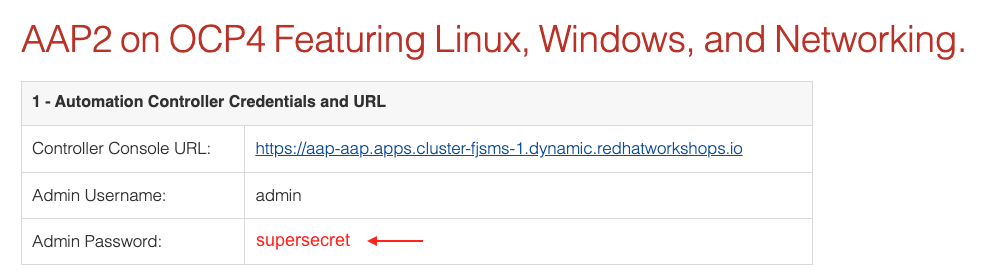
⚠️ When using Ansible Product Demos on demo.redhat.com,
the image below demonstrates where you can locate the Demo Credential password:
### Testing with RDP
In the AWS Console, you can follow the steps below to download an RDP configuration for your Windows host:
1. Navigate to the EC2 Dashboard
2. Navigate to Instances
3. Click on the desired Instance ID
4. Click the button to **Connect**
5. Select the **RDP client** tab
6. Click the button to **Download remote desktop file**
7. Use a local RDP client to open the file and connect
_Note: the configuration will default to using Administrator as the username, replace with ec2-user_